
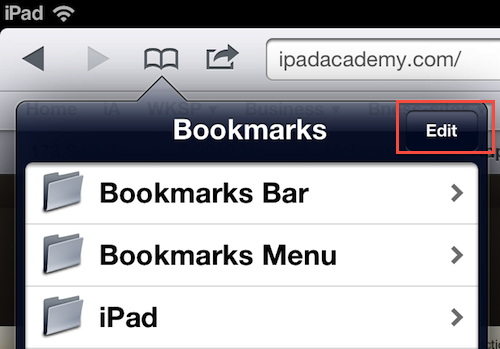
1. Tap the Bookmarks button (open book icon) in the Safari menubar in the upper left

2. Tap the Edit button
3. Tap the New Folder button on the upper left

4. Enter the title of the new folder
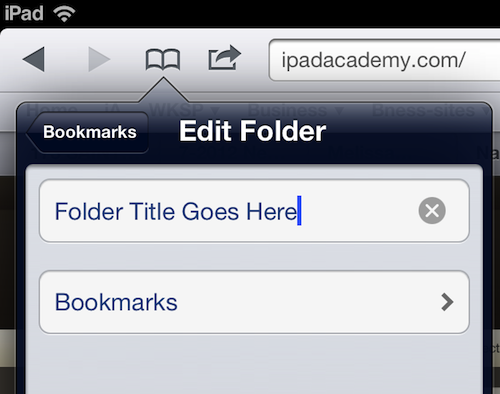
5. Tap the Bookmarks button, then tap Done. Your folder will appear in the list of bookmarks.
6. You can also change the order of folders or delete a folder while in Edit mode
7. To rearrange the folder list or move a folder to another place in the list, touch and hold on the grip strip (3 horizontal lines) just after the folder name. Now slide the grip strip with the folder name up or down the list to change the order.
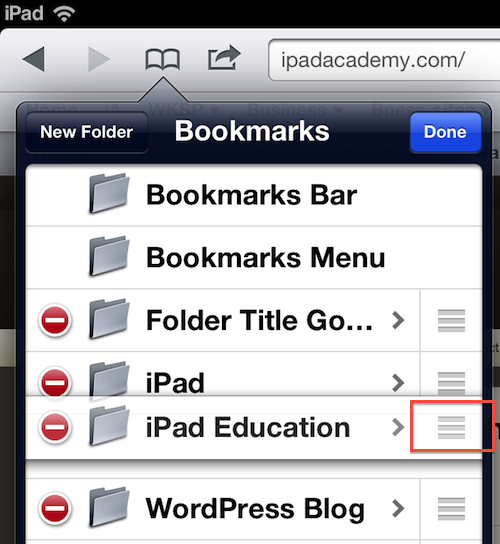
8. To delete a folder, tap the red minus button and confirm by tapping delete

Posted on 17 November 2012
Tags: how to, tip, tutorial
About the Author
Dr. Andy Brovey, The Portable Prof, has over twenty-five years experience in educational technology, including teaching, administration and professional development. In 2007, Apple Inc. recognized his work and named him an Apple Distinguished Educator. Andy now runs a professional development business, working on site and online to help others make sense and make use of digital tools. He started the iPad Academy blog shortly after the first iPad went on sale, and is the author of the self-published eBook - iPad Academy: Tips, Tricks and Clever Techniques. He also created and directs the iPad Academy Master Class, an online video training series to help others become more comfortable and competent with the iPad. Video Message from Andy
Written by Andy Brovey
Topics: App Tips & Tutorials