
In recent posts I wrote about using the handy Shortcuts feature to create abbreviations to save typing and to add words to the iPad dictionary. Seems I missed a simple step and a reader asked me about it.
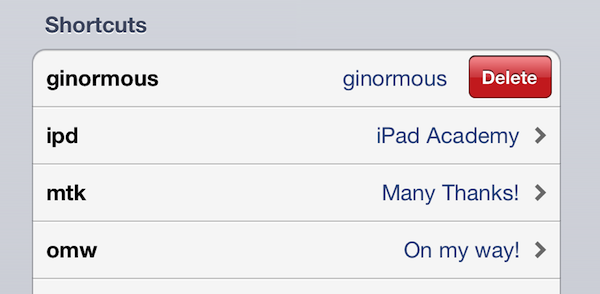
I told you how to add items but not how to delete them. The process is easy. Simply swipe a finger left or right over the item you want to delete. Then tap the red Delete button. This “swipe to delete” works most anywhere to get rid of an item on the iPad. For example, in mail you can swipe to delete a message from your mail list.
Posted on 14 August 2012
Tags: how to, tip
About the Author
Dr. Andy Brovey, The Portable Prof, has over twenty-five years experience in educational technology, including teaching, administration and professional development. In 2007, Apple Inc. recognized his work and named him an Apple Distinguished Educator. Andy now runs a professional development business, working on site and online to help others make sense and make use of digital tools. He started the iPad Academy blog shortly after the first iPad went on sale, and is the author of the self-published eBook - iPad Academy: Tips, Tricks and Clever Techniques. He also created and directs the iPad Academy Master Class, an online video training series to help others become more comfortable and competent with the iPad. Video Message from Andy
Written by Andy Brovey
Topics: iPad Tips & Tutorials